Showing posts with label macOS. Show all posts

Create Bootable Install USB of macOS Sierra

If you have multiple computers that need the macOS Sierra upgrade, you'll want to create a bootable install flash drive. The download for macOS Sierra is about 5 GB, and could take some time downloading on each computer individually. So downloading it once and making a bootable USB drive is an easier, faster way to go.

1. Download the macOS 10.12 Installer
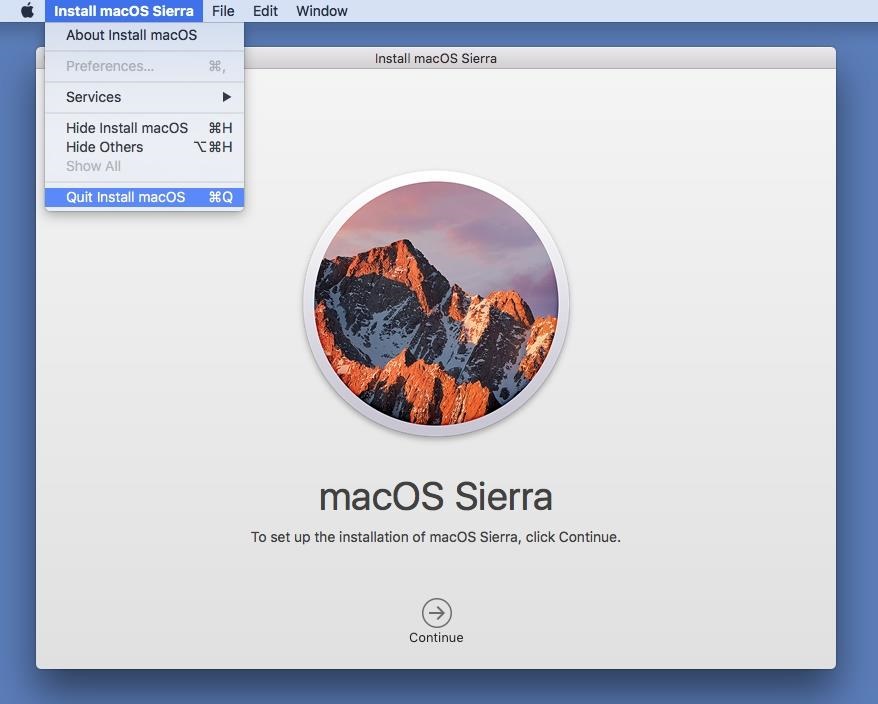
Download the macOS 10.12 Sierra from the Mac App Store (HERE) - but don't install it when it finishes downloading. If you do, it will auto-erase the file when your system gets back up and running, which means you won't have the file for your USB drive. So, close out any installation screen that pops up.

2. Get 'Install Disk Creator'
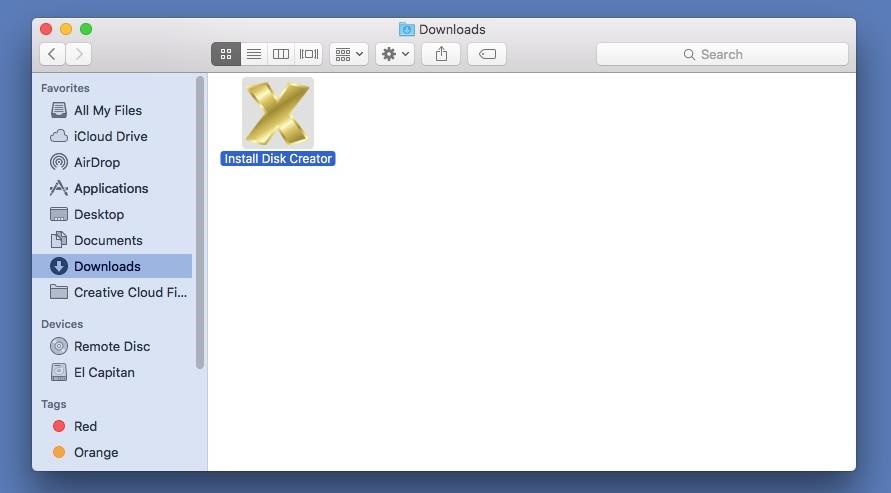
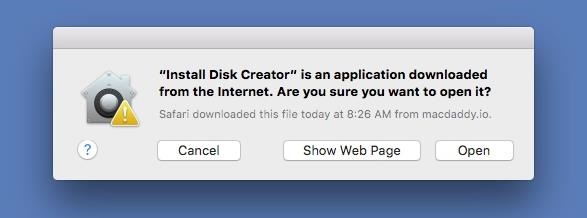
After downloading the app (HERE), unzip it, then open it up. When the popup appears, hit Open. (You may need to adjust your Gatekeeper security settings.)

3. Select Your USB Flash Drive
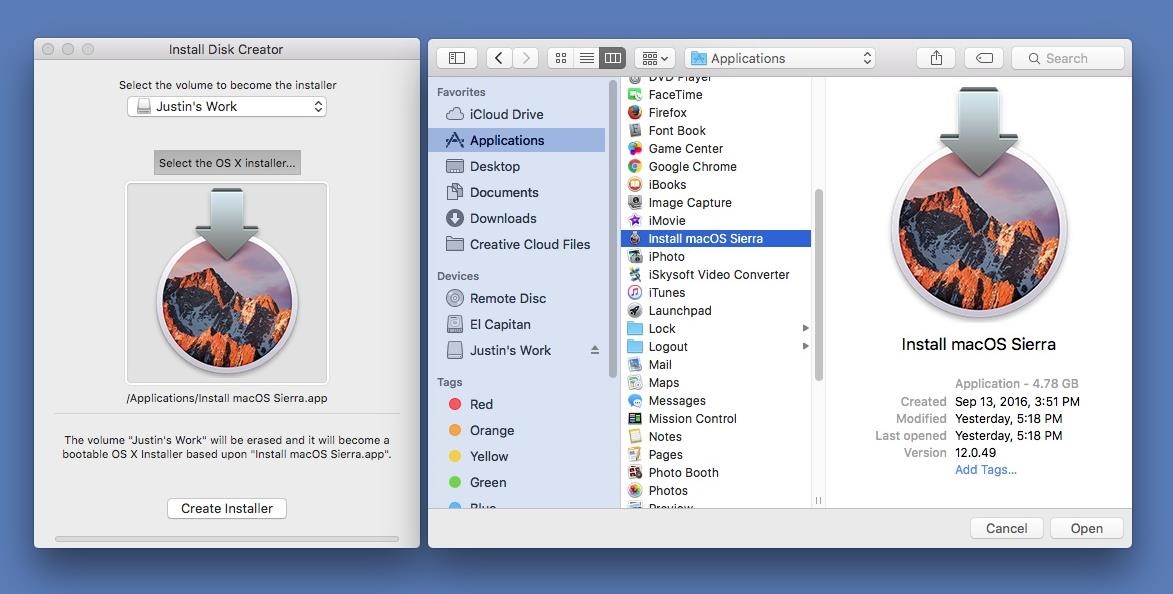
Use a USB flash drive with at least 16 GB of total space. It's possible an 8 GB one will work, but there have been issues with using 8 GB drives for more recent Mac installer files. The following process will totally wipe your USB flash drive, so make sure that you back up all of your important files, if any, before proceeding. When ready, select your flash drive in the drop-down menu in Install Disk Creator.


4. Choose Your Sierra File
Install Disk Creator will automatically detect your "OS X" installer file. If you have an old installer file from El Capitan or Yosemite installed, you might have to choose "Select the OS X installer" button, then navigate to your Applications folder and select "Install macOS Sierra."

5. Erase and Create the New Disk
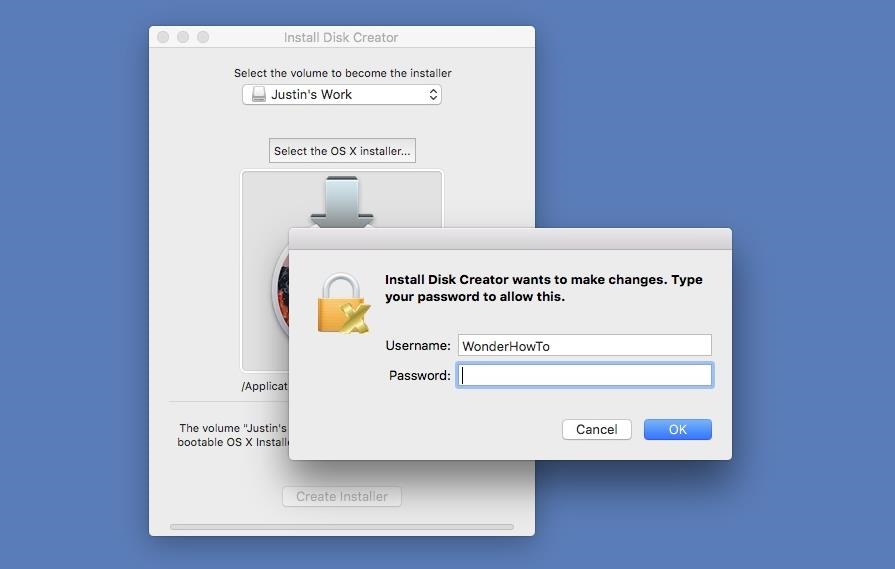
When ready, just hit the "Create Installer" button. You will need to enter your admin password to continue. As mentioned, this will erase your flash drive and turn it into a bootable macOS Sierra drive. So this is your last chance to stop and back up any important files on your flash drive before continuing. When the bootable drive is ready, you'll see a popup telling you so. The whole process takes about 6-7 minutes.

6. Install macOS Sierra on Your Computer
Now that you're all set, it's time to install Sierra on your computer. Most devices are supported, but just in case, check out the basic list of Macs you can install Sierra on below (for features requirements, see here). Also, you'll need OS X 10.75 or later, 2 GB of memory, and at least 8.8 GB of available storage to upgrade your computer.
  • MacBook (Late 2009 or newer)
  • MacBook Pro (Mid 2010 or newer)
  • MacBook Air (Late 2010 or newer)
  • Mac mini (Mid 2010 or newer)
  • iMac (Late 2009 or newer)
  • Mac Pro (Mid 2010 or newer)
With your bootable USB drive inserted in your computer, restart your Mac, then hold the Option (alt) key down on your keyboard until the Startup Manager appears. Select the macOS Sierra drive to continue. The macOS Utilities will open. Just select "Install macOS" from the list of options, then follow all of the on-screen prompts to start the installation process. After that, all you have to do is wait for it to boot back up with your new Sierra operating system!

Credit: gadgethacks.com

Apple Giving Up Your Phone, Tablet, Mac?

iOS 11 is on the way this fall. Apple says users can expect some big changes including more smart home uses, a complete redesign of the App Store and the largest update for an iPad that the company has ever done. iPads will also be getting a file manager system.

The company also says that Siri will be getting a more normal sounding voice and start using your Safari searches to make suggestions and also to correct your spelling.

But, as with all change, some things get left behind. In this case, it’s these devices:
  • iPad 4
  • iPhone 5
  • iPhone 5C

You could still use them, just not with the new OS. And if you can’t upgrade to the newest OS, you’re going to soon see the end of security and bug support for these systems.

You’ll need at least an iPad Air or and iPhone 5S to use iOS 11. Remember, support for 32-bit apps is ending soon as well. Thousands of apps won’t work with iOS 11.

There’s also a new operating system on the way for Macs called macOS High Sierra. The good news is that if you’re running macOS Sierra, you can run High Sierra.

Mac Pros, Mac minis, MacBook Airs, and MacBook Pros from 2010 or later can handle High Sierra, as can MacBooks, iMacs, and iMac Pros made in late 2009 or later.

Credit: worldstart.com

macOS Sierra Now Available As Free Update

Apple® today announced that macOS™ Sierra, the latest major release of the world’s most advanced desktop operating system, is now available as a free update. macOS Sierra brings Siri® to the Mac® with intelligent and helpful features users know and love from iPhone® and iPad®, along with all-new capabilities designed specifically for use on the desktop. Features like Universal Clipboard, iCloud® Desktop and Documents, Auto Unlock and Apple Pay® on the web help your Mac work even better with other Apple devices. And Photos gets an update with a new Memories feature that automatically creates curated collections of your favorite photos and videos.

Siri on the Mac can help send messages and email, find documents, look up information, search a user’s photo library, adjust system preferences and more. Users can also drag and drop Siri results into documents or pin them into their Today view for later reference. Universal Clipboard allows users to copy content from an app on one Apple device and paste it into another app on a different Apple device. With iCloud Desktop and Documents users can now access the files on their Desktop from iPhone and iPad. And Auto Unlock lets users automatically log into their Mac when they are wearing an authenticated Apple Watch®.

Apple Pay on the web makes the online shopping experience in Safari® more convenient and secure than ever. Shoppers can now click the Apple Pay button at checkout on nearly 300,000 participating websites, including 1-800-Flowers, Gilt, Instacart, Lululemon, Warby Parker and more, and then complete their purchase with Touch ID® on iPhone 6 or later or with Apple Watch. Users’ credit or debit card information is not shared with online merchants and strong encryption protects all communication between a user’s device and Apple Pay servers.

Photos introduces Memories, which highlights favorite and forgotten moments in users’ photo libraries by automatically creating curated collections of occasions like birthday parties or family vacations. Photos uses advanced computer vision to identify faces, objects and scenes in your images, so photos can be searched by who and what is in them. An all-new Brilliance editing tool brightens dark areas and pulls in highlights to make photos look richer and more vibrant.

Other great new features in macOS Sierra:
  • Messages makes conversations more interesting, allowing users to preview web links and play video clips from right within the app; respond to messages with a Tapback like a heart, thumbs up and more directly onto a message bubble; and send bigger emoji for more message impact.
  • Tabs are now available across Mac apps that support multiple windows, including Maps, Mail, Pages®, Numbers®, Keynote®, TextEdit, and even third-party apps.
  • Picture in Picture floats video from Safari or iTunes® in a window over the desktop. The window can be resized, dragged and pinned to any corner of the screen so users can watch video while they work.
  • Optimized Storage frees up space when a Mac starts getting full by storing infrequently used items in the cloud and helping users remove apps and files they no longer need.
  • Apple Music® in iTunes makes it even easier to discover new music and browse exclusives and new releases.

Availability
macOS Sierra is available as a free update starting today from the Mac App Store®. macOS Sierra supports all Macs introduced since late 2009. Some features may not be available in all regions or all languages. For more information, please visit: www.apple.com/macos/sierra.

Credit: apple.com
For Your Information:
Posts are presented in a stack with the most recent post at the top. Clicking Older Posts will show the next (#) older posts and so forth. Clicking Newer Posts will show the previous (#) newer posts. Clicking on the word Home will display the top (#) most recent posts. When viewing a single post, clicking Older or Newer Post shows a single post each time, but, clicking Home displays the top (#) most recent posts. There are 326 posts in the stack, as of 9-15-19.